From v1.3 to v2.0
The following upgrade procedure is for roverCRM which have not been customized
Make sure that you do have a back up of your files and and database before upgrade
Server Requirements
The following are the server requirements for RoverCRM v2.0:
- PHP Version: >= 8.2
- PHP Extensions:
- OpenSSL
- PDO
- Mbstring
- Tokenizer
- JSON
- cURL
- Fileinfo
- Apache Module:
- mod_rewrite
Folder Permissions
You must give permission (775) to some directories:
storage/app/storage/framework/storage/logs/bootstrap/cache/
STEP-1
To upgrade to the latest version of roverCRM, first, log in to your cPanel.
-
Then, go to File Manager->public_html or the Subdomain where your script located at.
-
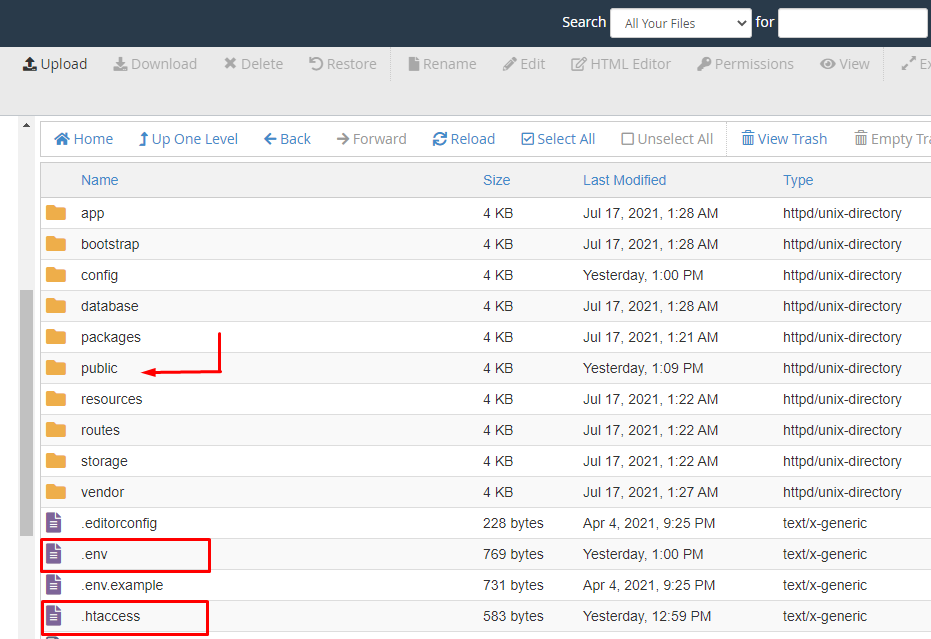
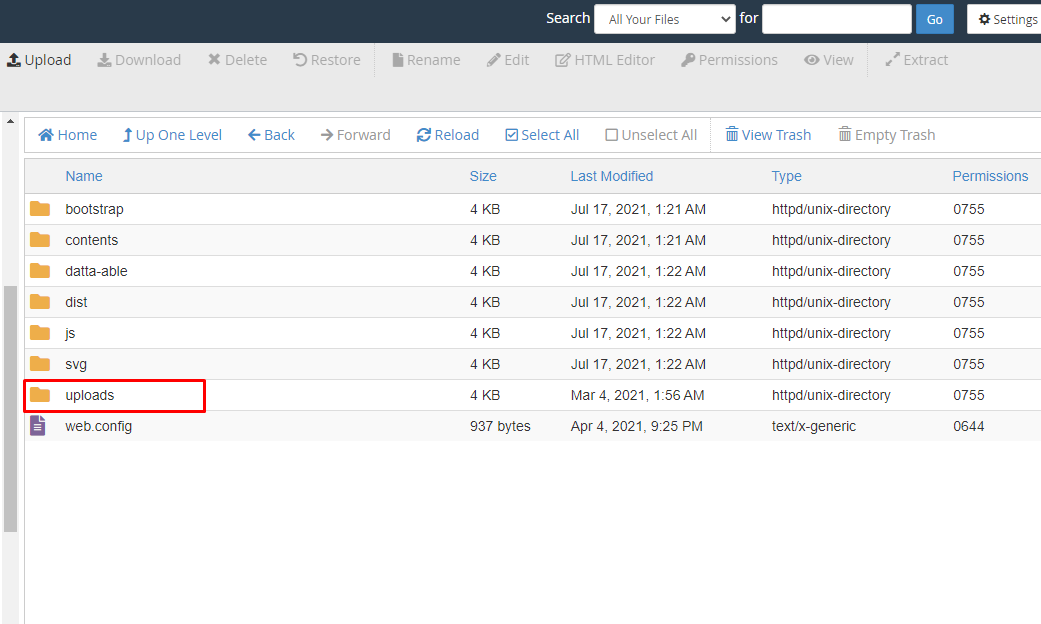
Select all the files and folders except .env file .htaccess & uploads folder(uploads folder is in your public folder) and then delete the selected files.
-
Now select all the files and folders from the upgraded version folder except .env .htaccess & uploads folder(uploads folder is in public folder) and paste it in the cPanel Project root.
STEP-2
As each upgrade has its installer enabled by default, to disable the installer, go to the config folder then open app.php file after that remove this below line Infoamin\Installer\LaravelInstallerServiceProvider::class, from config/app.php
You need to update your database. To update, follow the steps below:-
-
Now, login to PHPMyAdmin or your SQLServer from your browser & select the project database name.
-
Now select/open SQL option where query will be executed
-
After that, execute this below sql step by step,
ALTER TABLE `preferences` DROP INDEX `preferences_value_index`;
ALTER TABLE `preferences` MODIFY `value` TEXT;
ALTER TABLE `role_users` MODIFY `user_id` INT(10) UNSIGNED NOT NULL;
STEP-3
If you don’t see changes in your project, you must clear your project cache. The steps are mentioned below:-
-
Go to your project directory.
-
Login to your SSH account. Go to the directory where the roverCRM project exists.
-
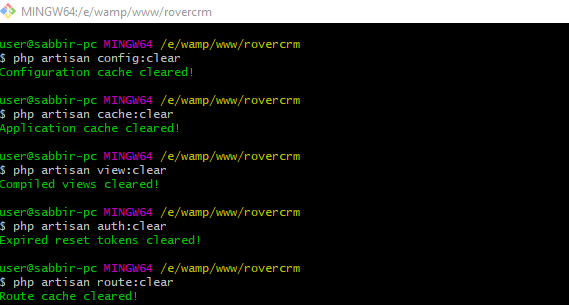
Run the following commands as shown in the screenshot below.
STEP-4
{your url} means application root URL.
- Now please go to http://{your url}/clear-cache.